
iPhone and iPad · App Store
If the app isn't in the App Store
Change your Apple Account region, then return to the installation guide for your chosen app.
Before you beginApple may not allow a region change if you have active subscriptions, remaining account balance or Family Sharing. Use only your own valid details.
Open your App Store profile
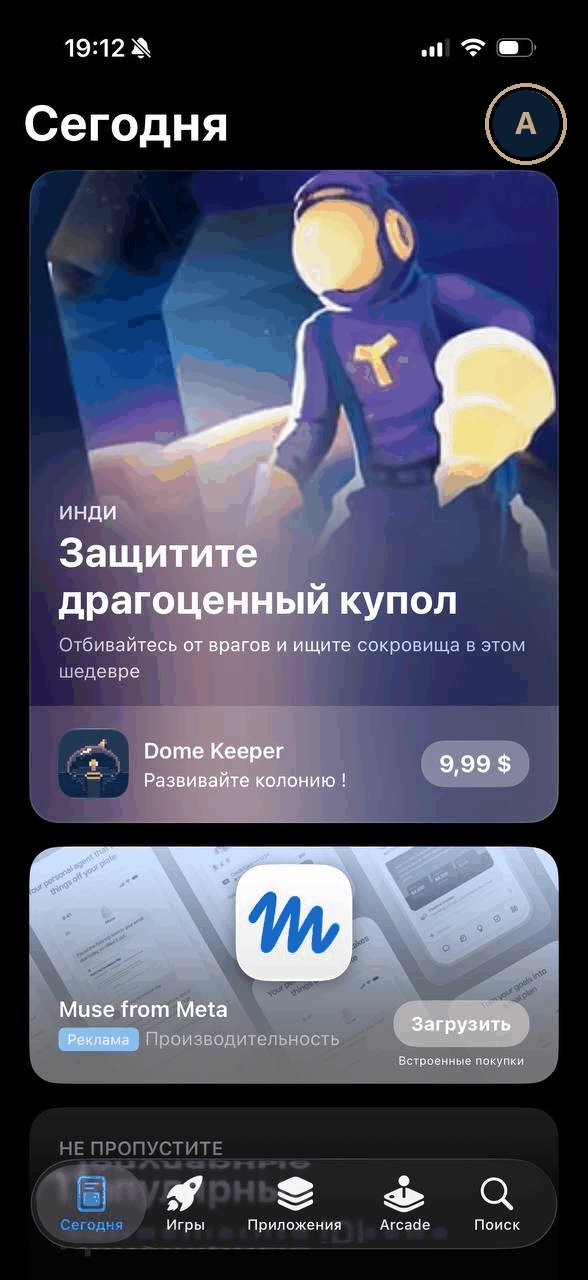
Open the App Store and tap the profile icon in the upper-right corner.
Open your account
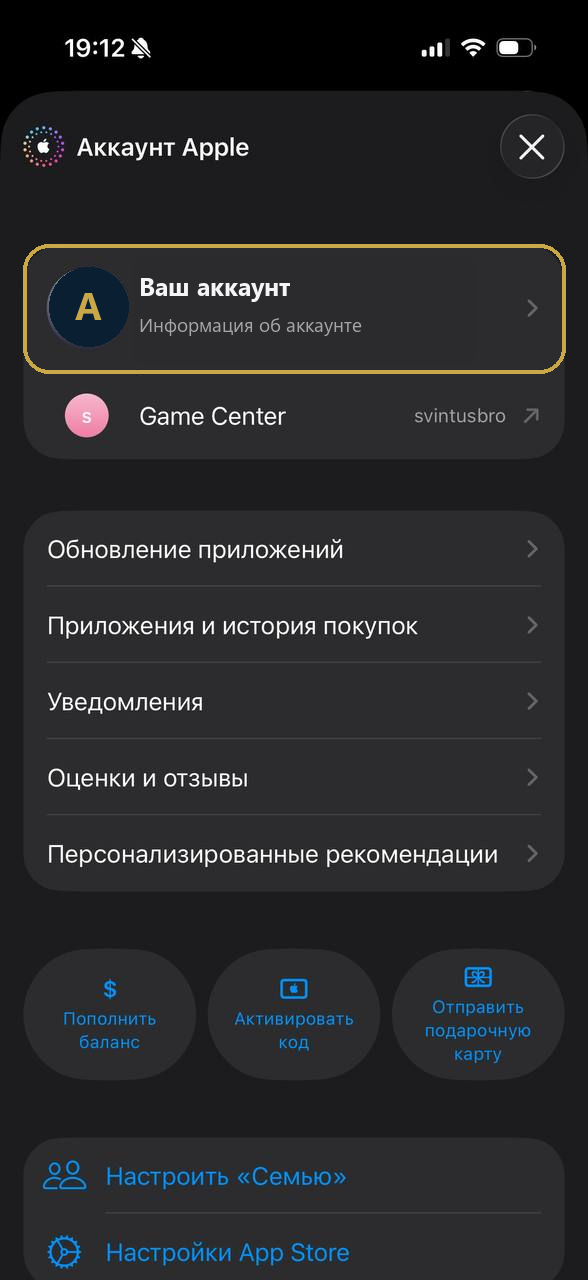
Tap the account card at the top of the screen.
Open App Store settings
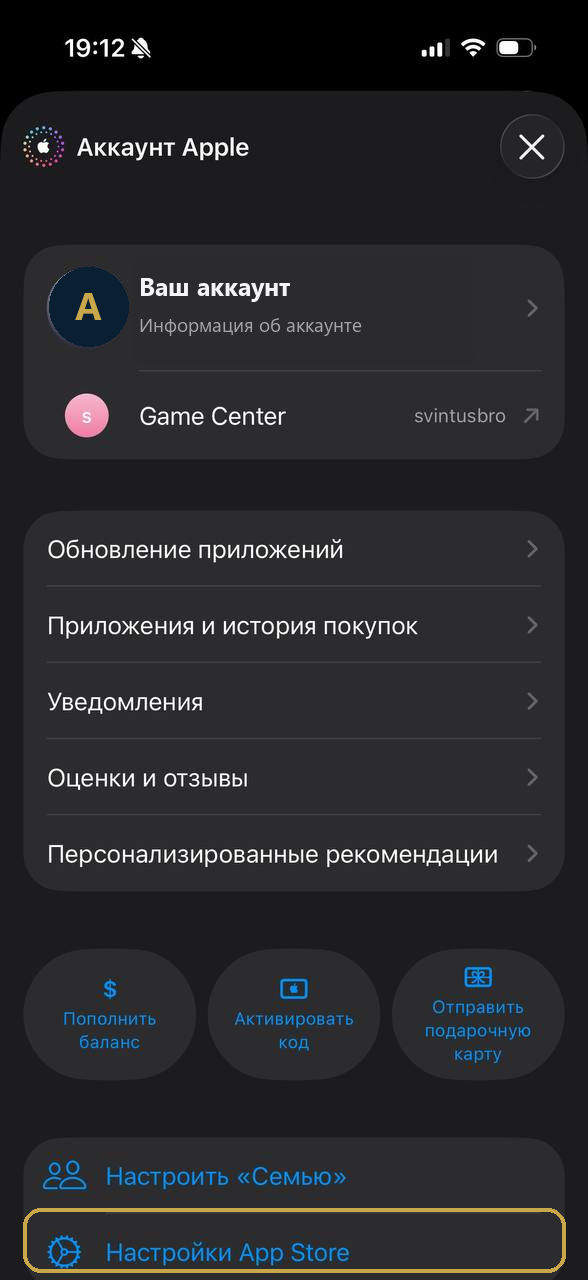
Tap “App Store Settings” at the bottom of the screen.
Open region selection
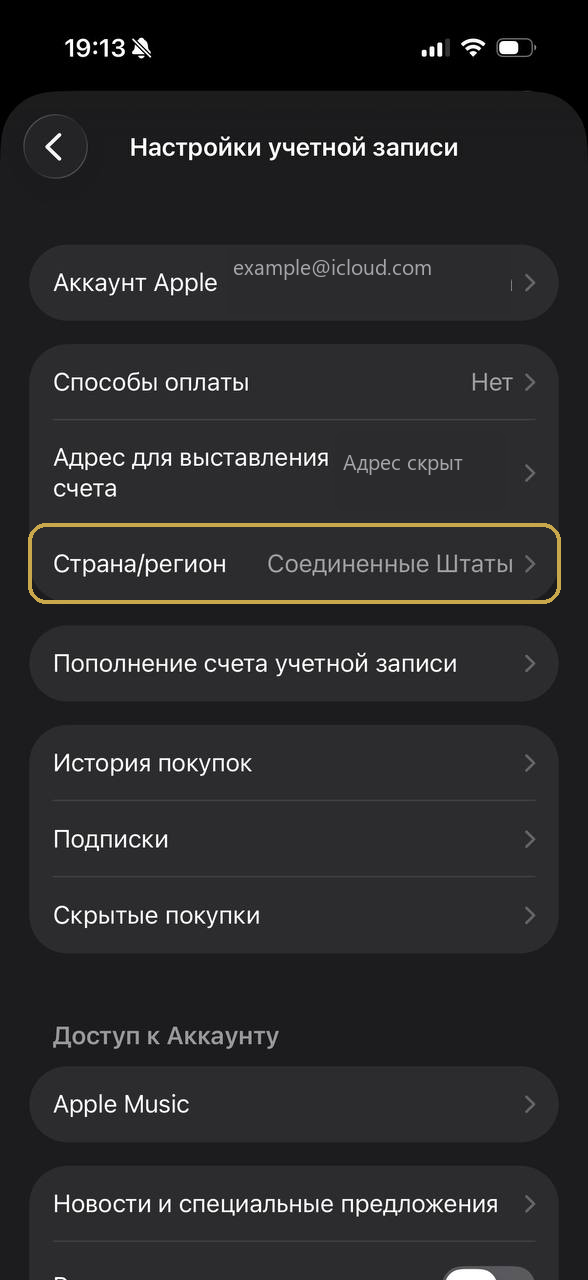
In your account settings, tap “Country/Region”.
Choose a region
Find the country you want in the list and tap it.
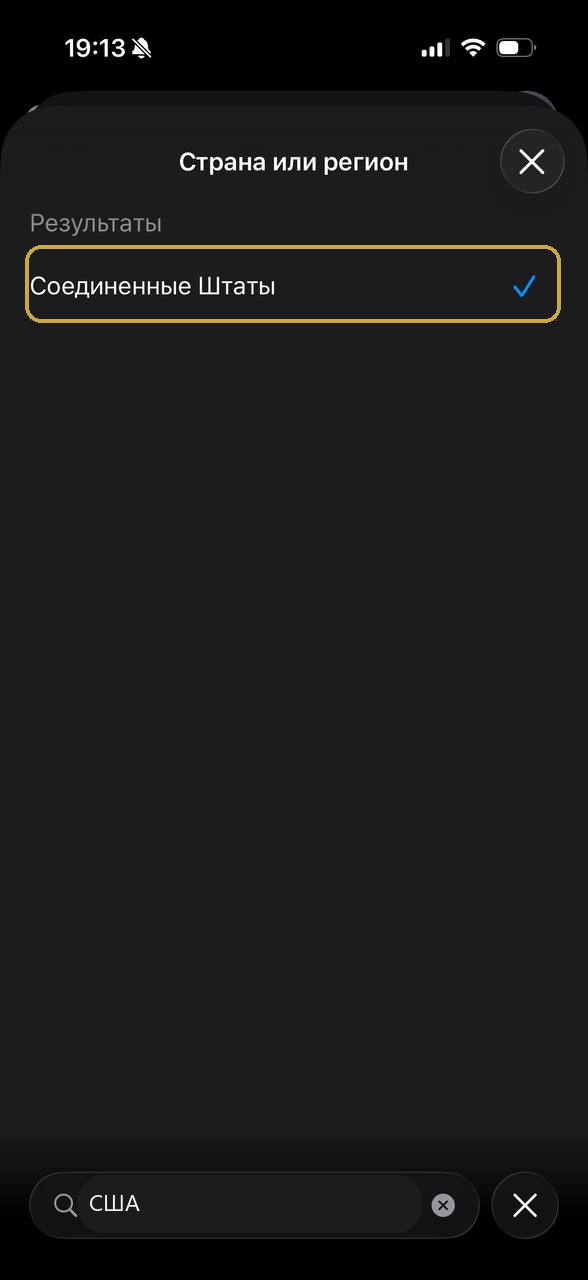
Accept the terms
Tap “Continue”, read the terms and confirm your agreement.
Enter your details
Choose an available payment method and enter your own valid details if Apple asks. When finished, tap the blue checkmark in the upper-right corner.
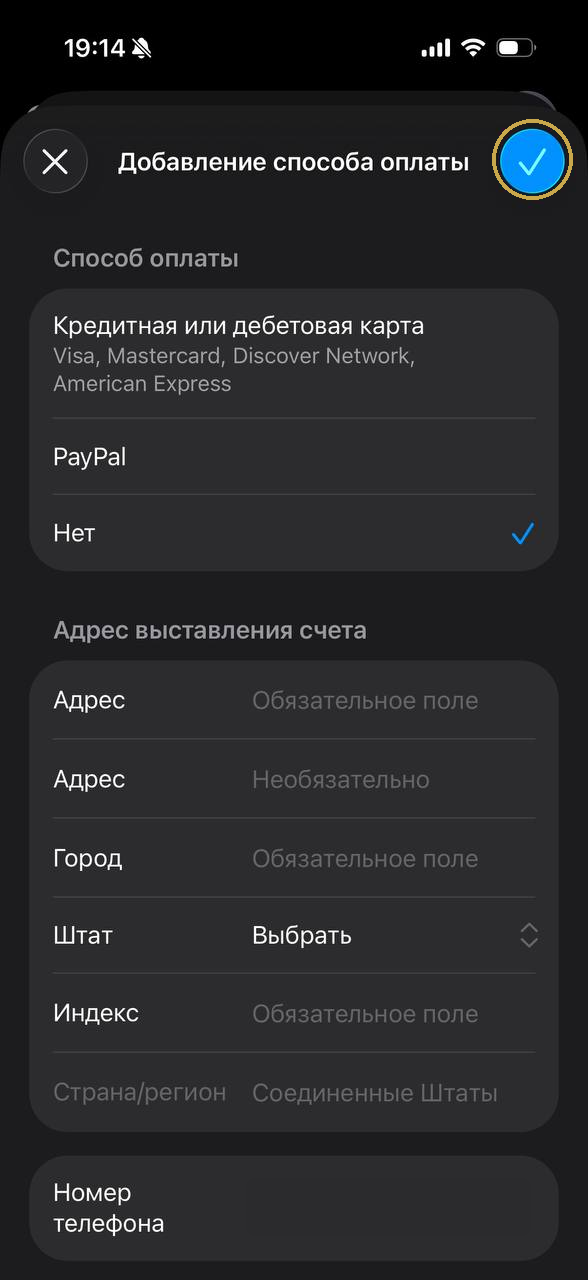
Return to installation
Open the guide you came from and try installing your chosen app from the App Store again.