Android · Happ · detailed guide
Connect to Ankora with Happ
Install Happ first, then add your subscription.
Two ways to add your subscription
Install Happ
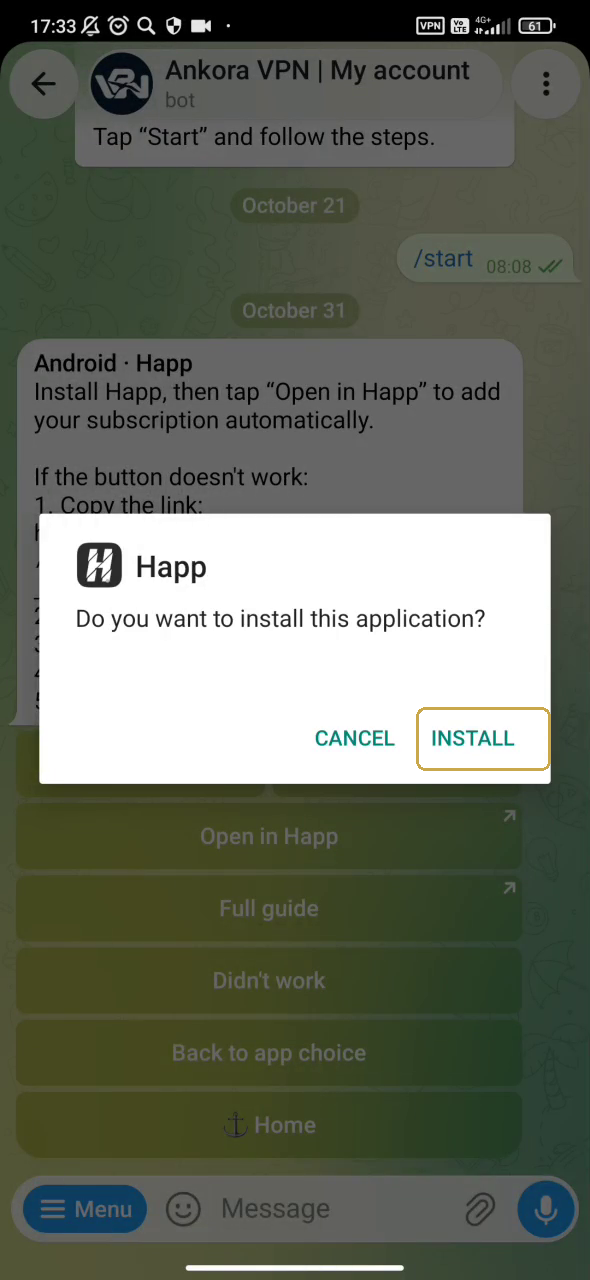
Open the app's page, tap “Install” and wait for installation to finish.
If Happ is unavailable on Google Play, download the APK from the developer’s official GitHub page and install it on your device.
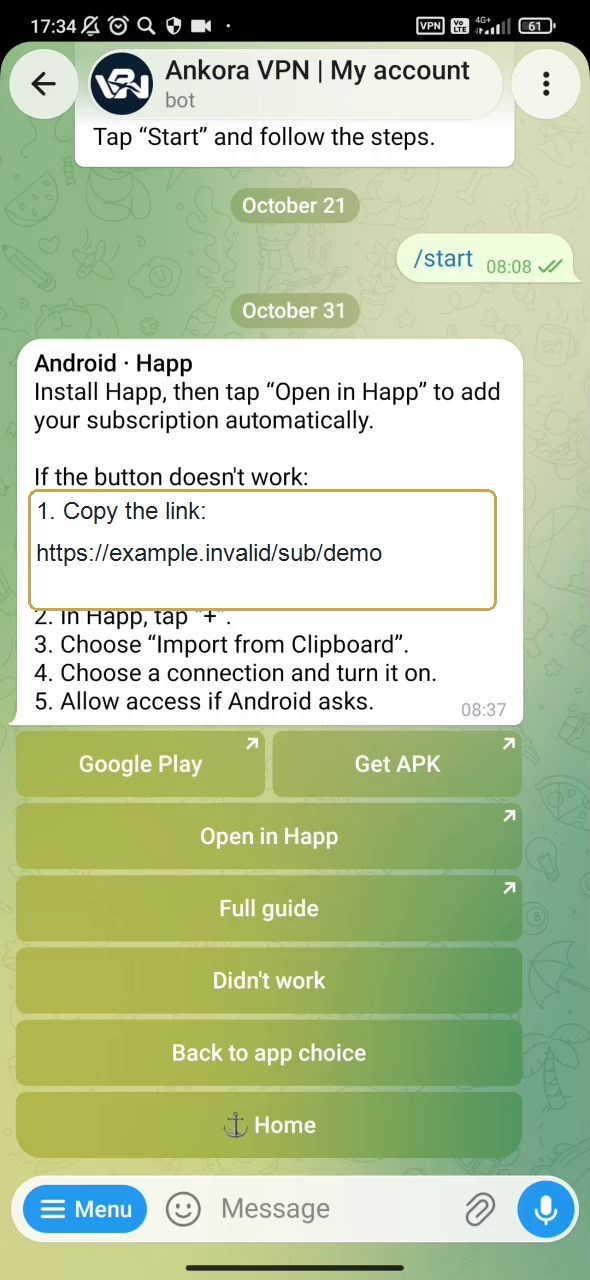
Copy the link
Return to Ankora. Press and hold the subscription link, then copy it.
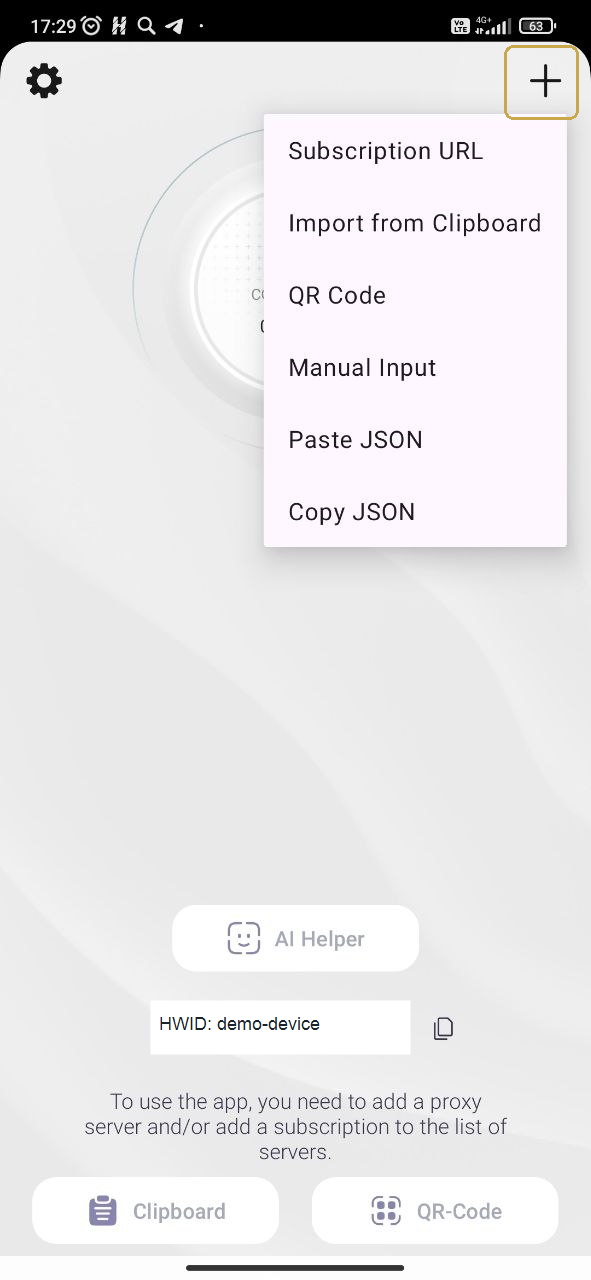
Open the add-subscription option
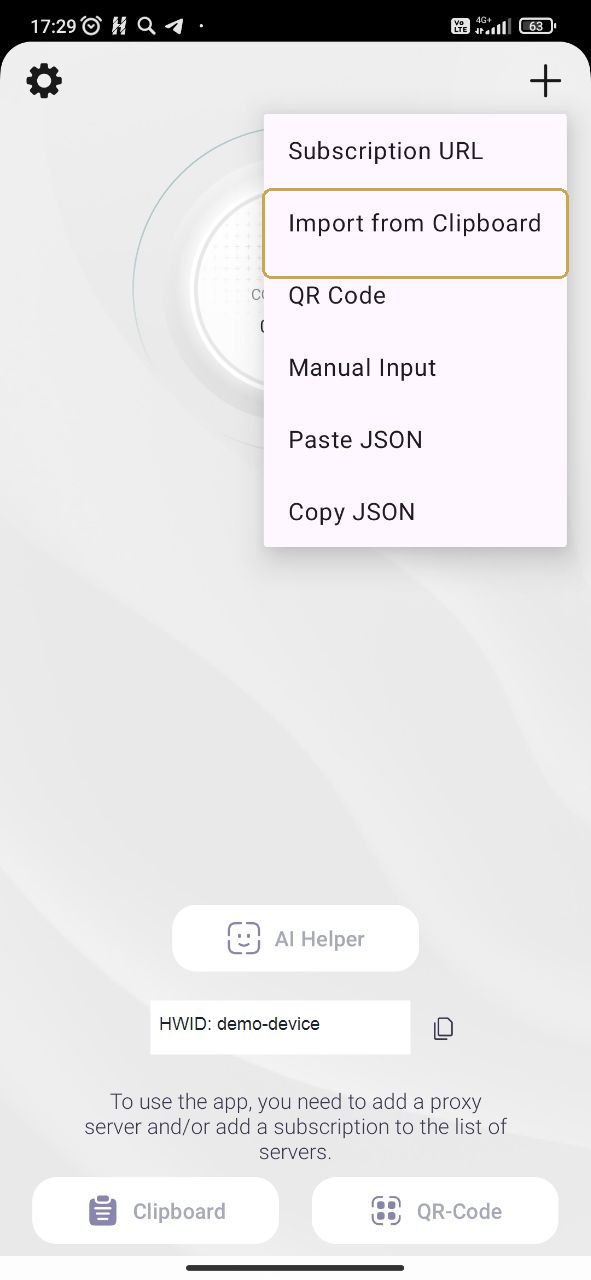
Launch Happ and tap “+” in the upper-right corner.
Paste the link
Choose “Paste from clipboard”.
Wait for the subscription to be added
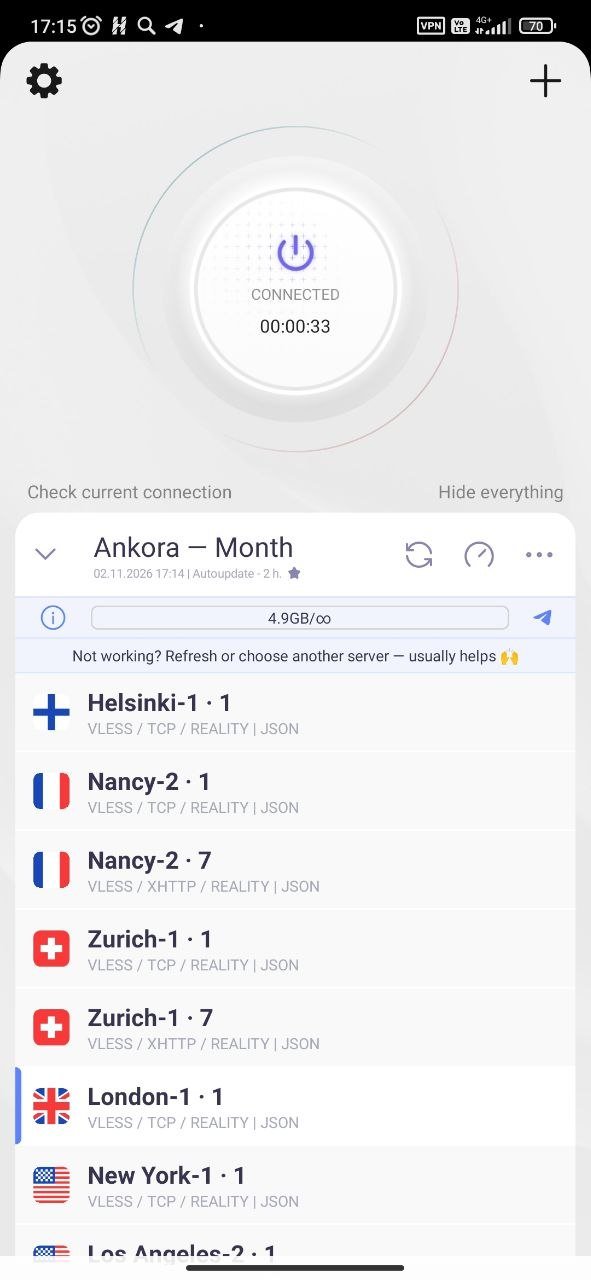
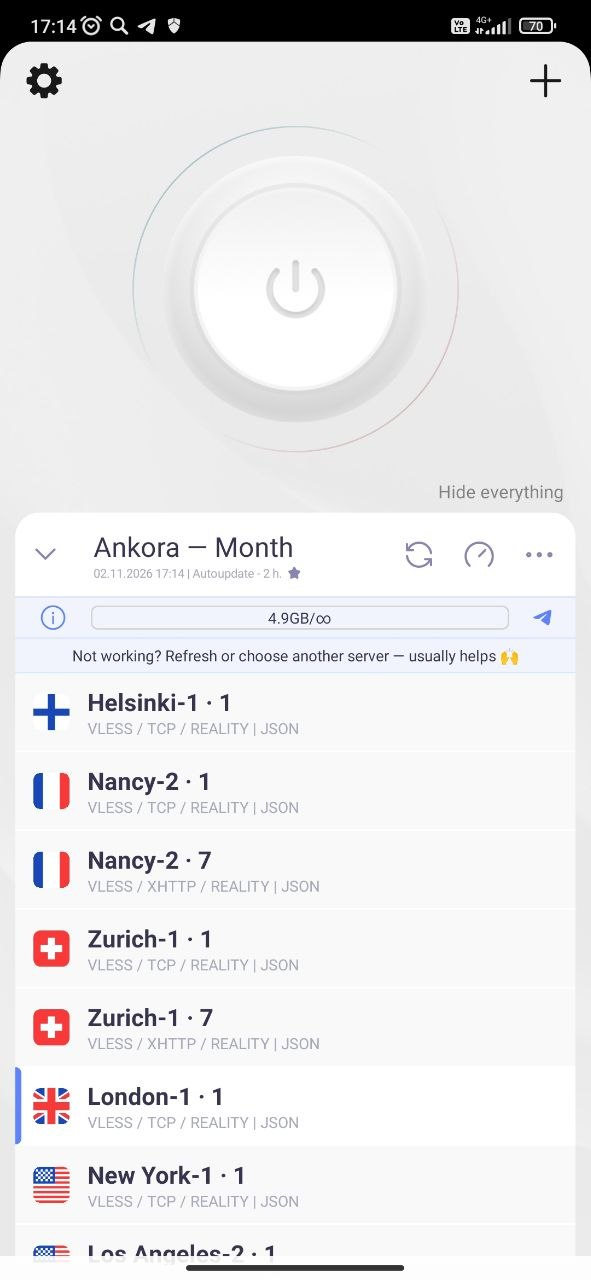
Happ will show your Ankora subscription with a list of connections.
Choose a connection
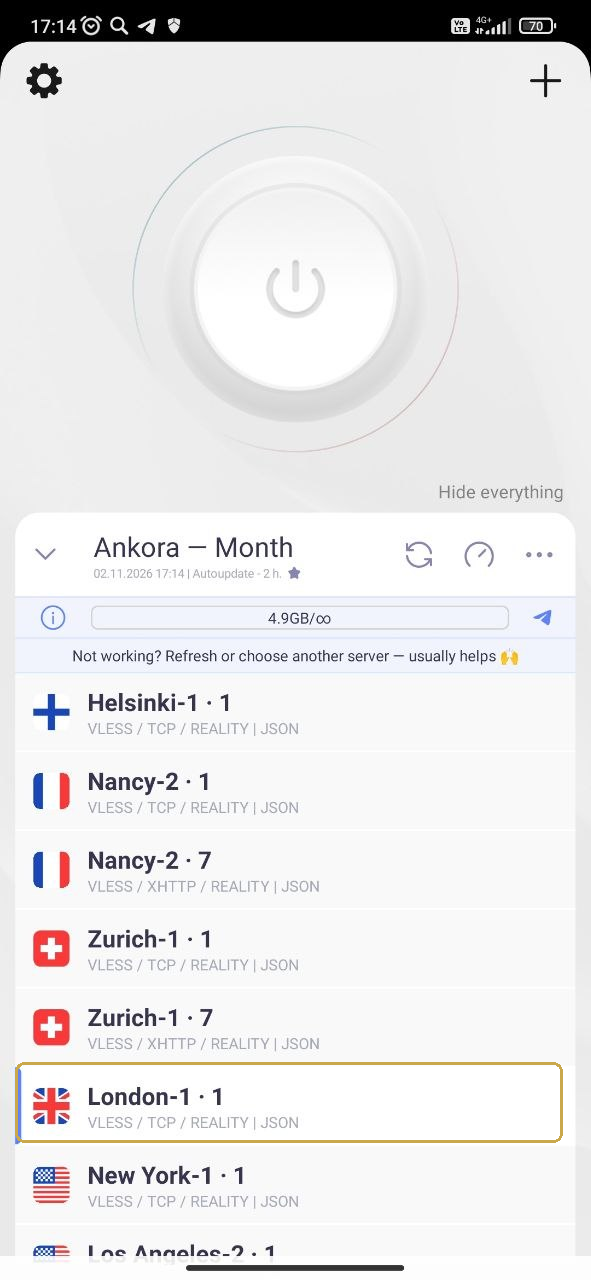
Tap any connection in the list. A colored mark will appear to its left.
Turn on the connection
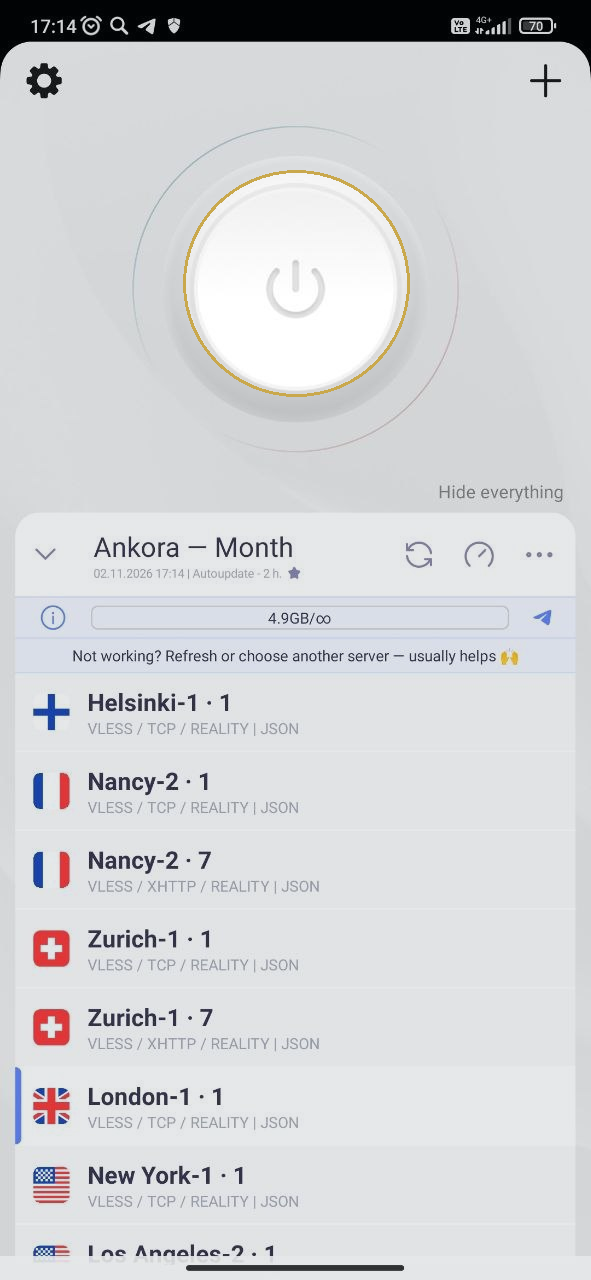
Tap the large round button at the top of the screen.
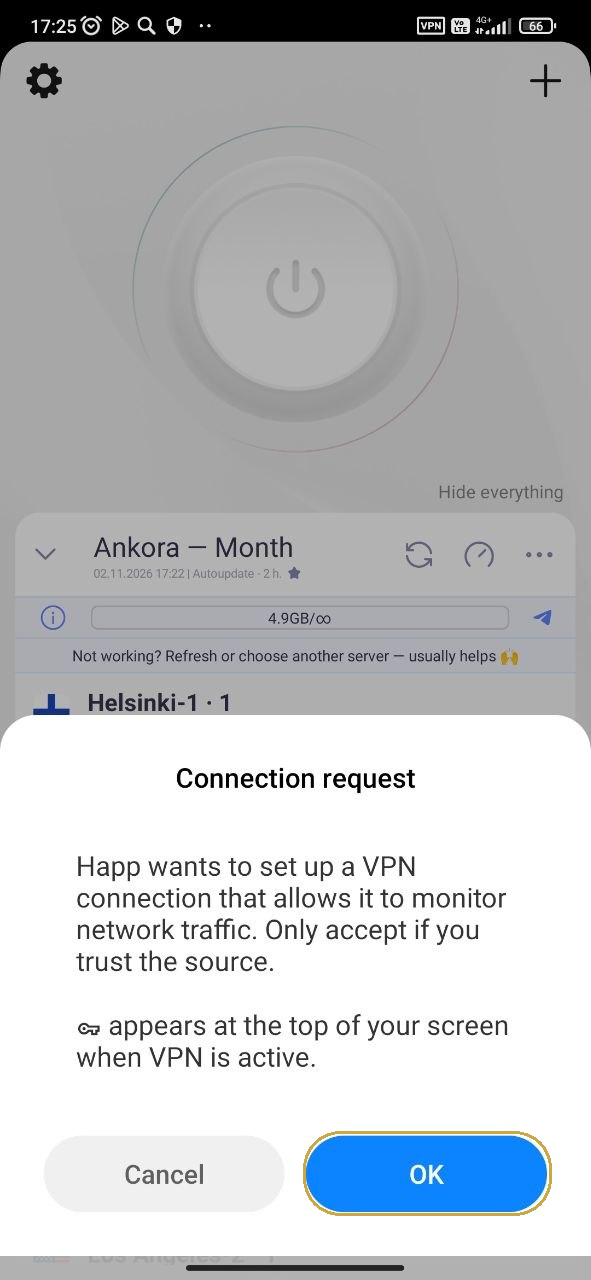
Allow the connection
The first time you connect, Android will show a system prompt. Tap “OK”.
Check the connection
The large button will show “CONNECTED” and a timer. A VPN icon will appear in the phone's status bar.