Android · INCY · detailed guide
Connect to Ankora with INCY
Every connection step, with screenshots.
Install INCYInstall INCY
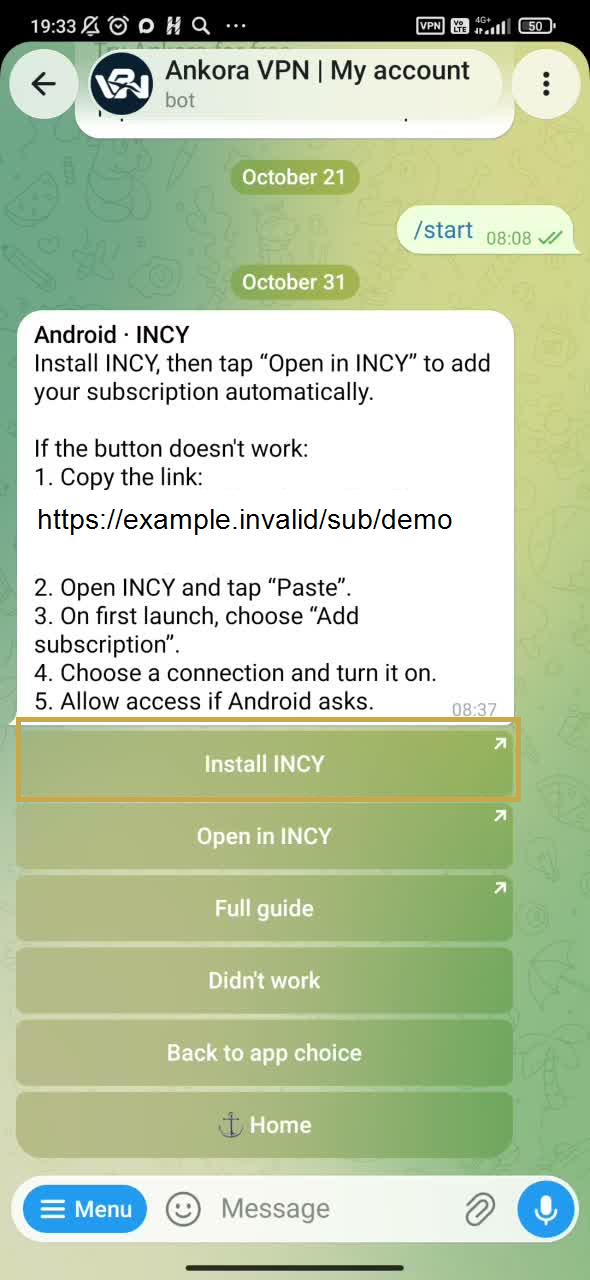
Open the app's page from the button above or tap “Install INCY” in the Ankora bot. Install the app on Google Play.
If INCY is unavailable on Google Play, download the APK from the developer’s official GitHub page and install it on your device.
Open your connection in Ankora
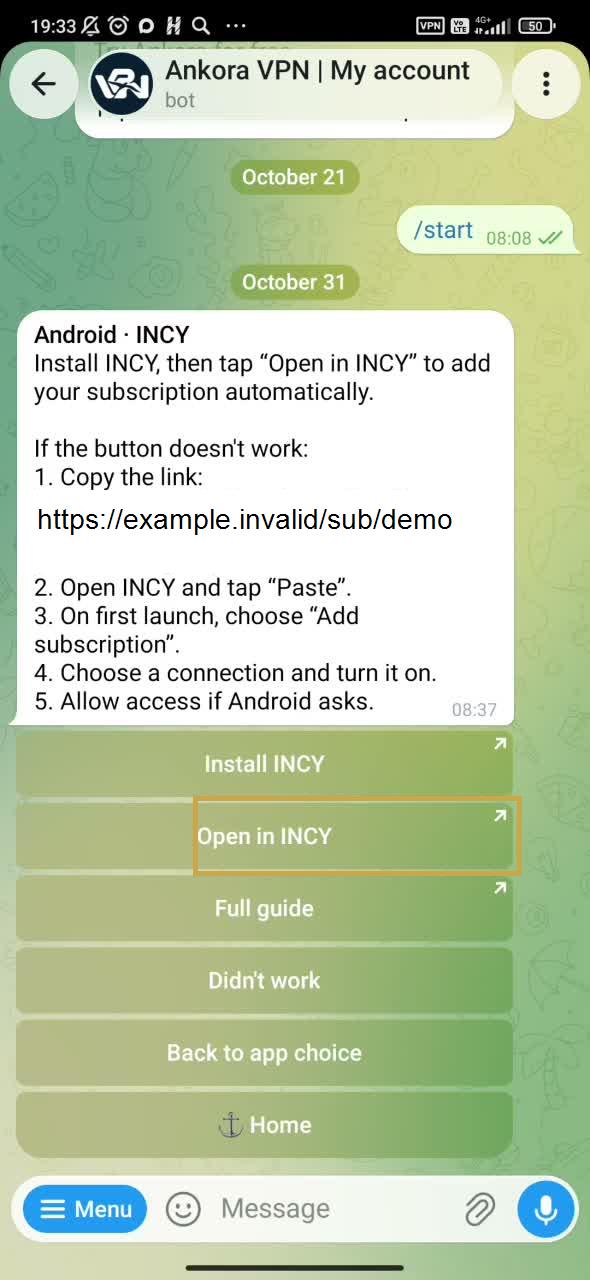
In the bot, choose Android and then INCY. You can open the subscription directly or copy its link.
Add your subscription
Choose the method that works for you.
Open directly from Ankora
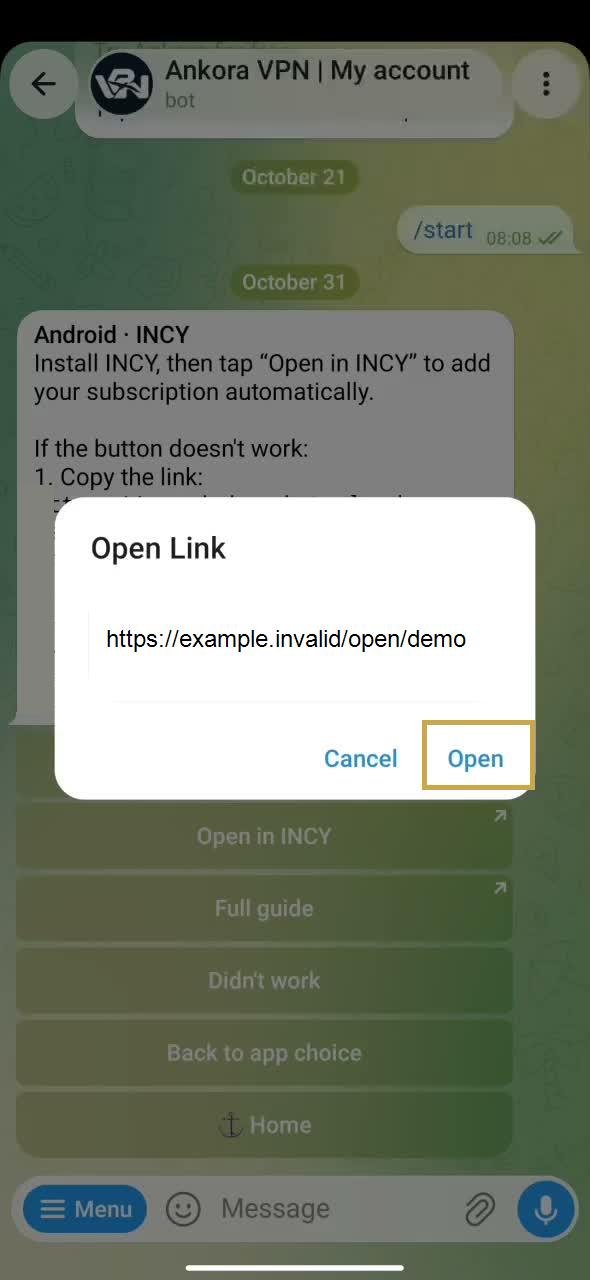
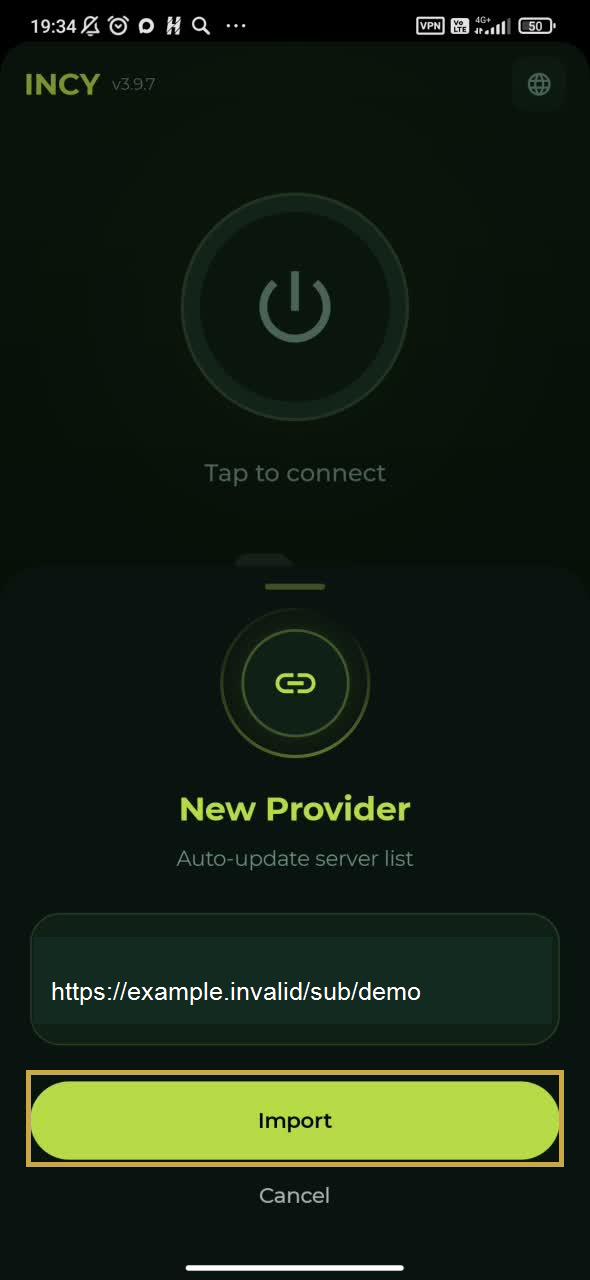
Tap “Open in INCY”, then “Open” in the system prompt. In INCY, tap “Import”.
Add the link manually
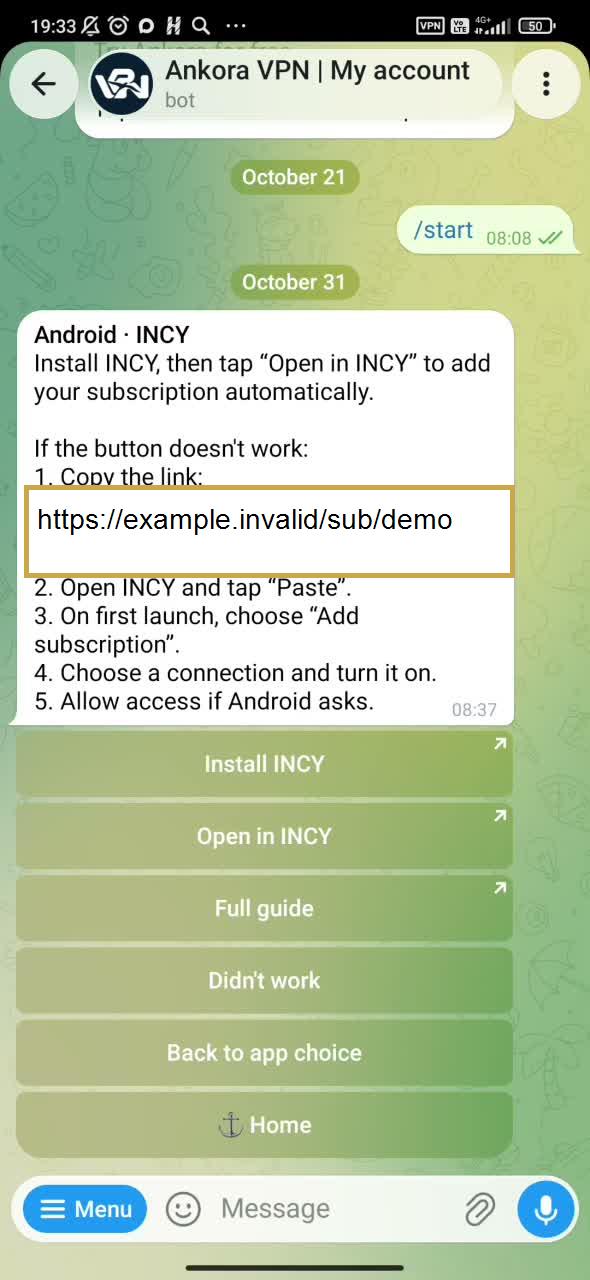
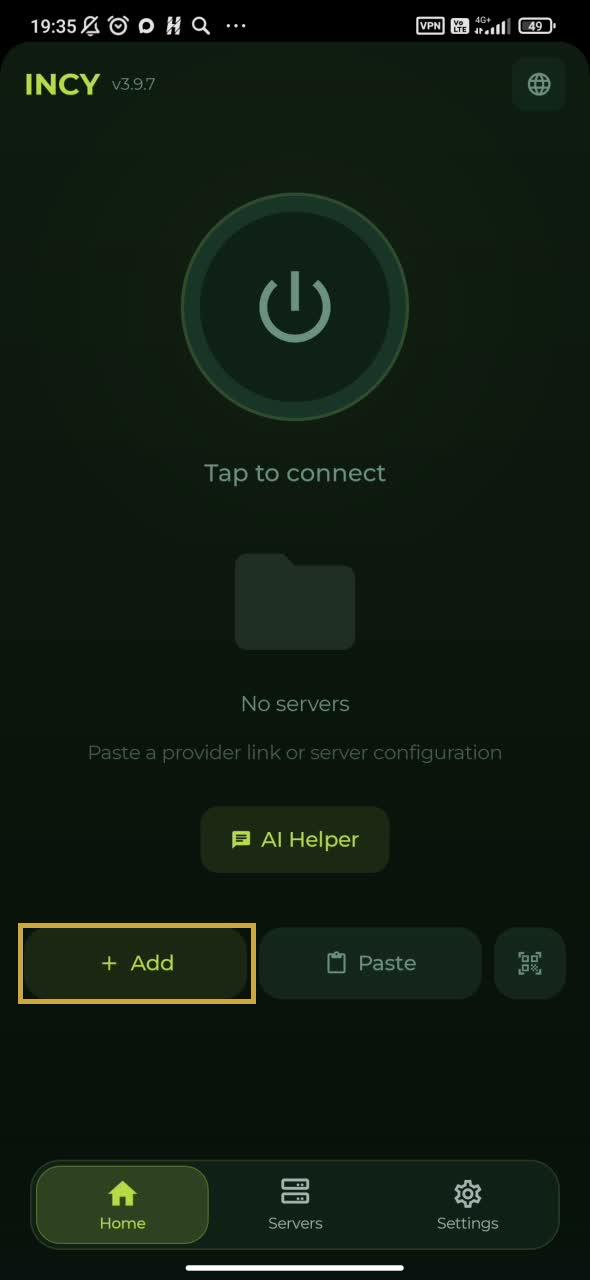
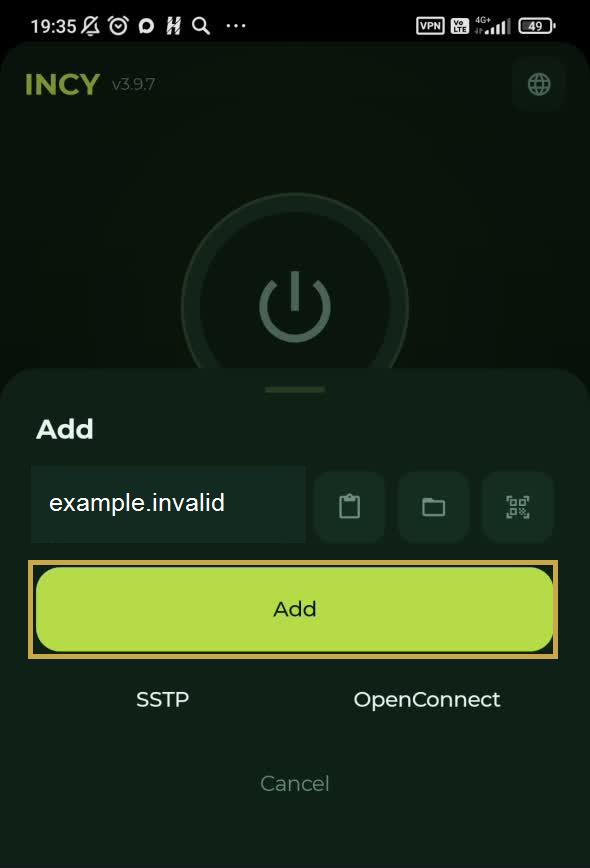
Tap the link in the bot to copy it. Open INCY, tap “Add”, paste the link and tap “Add” again.
Wait for the connection list
After adding the subscription, wait for the connection list to appear.
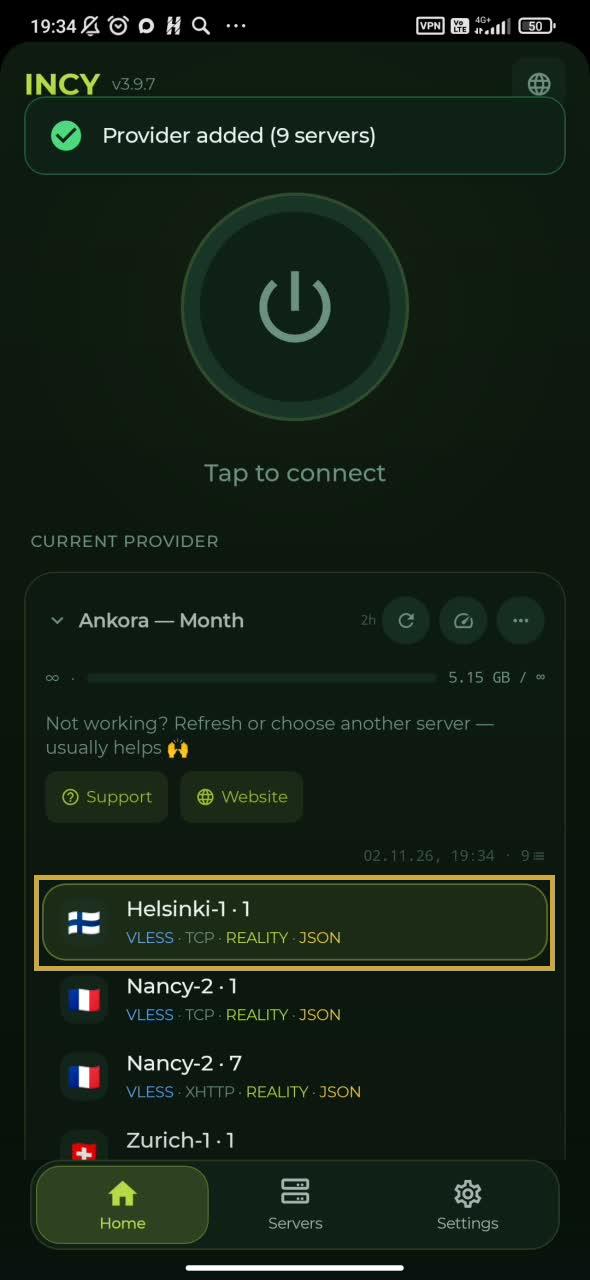
Connect
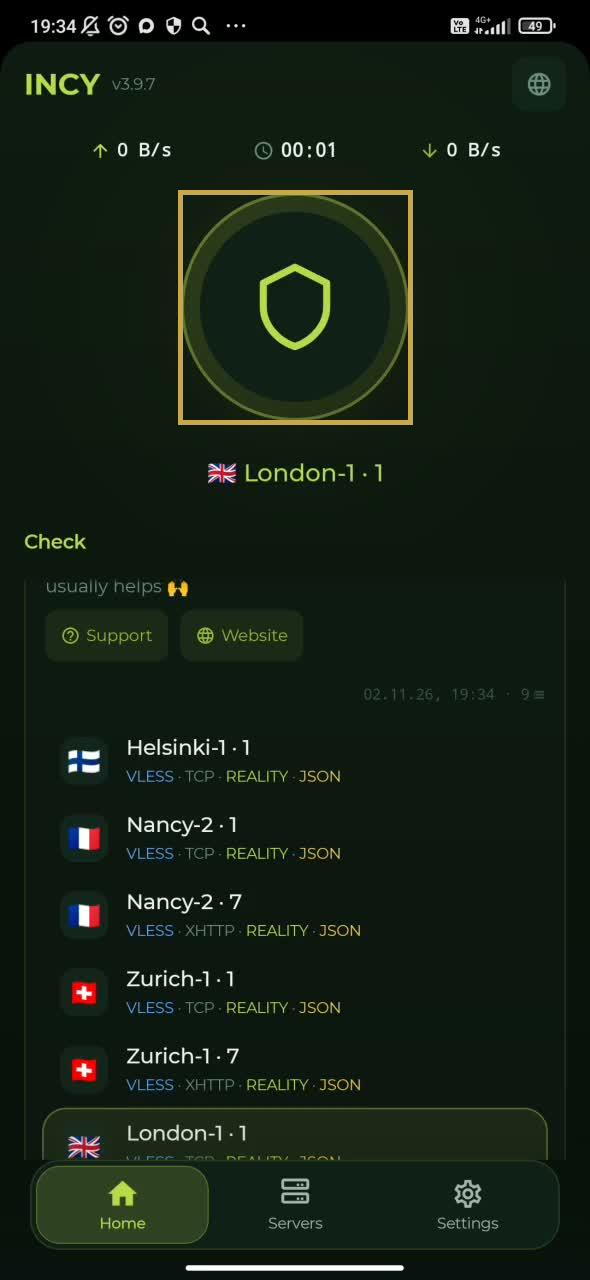
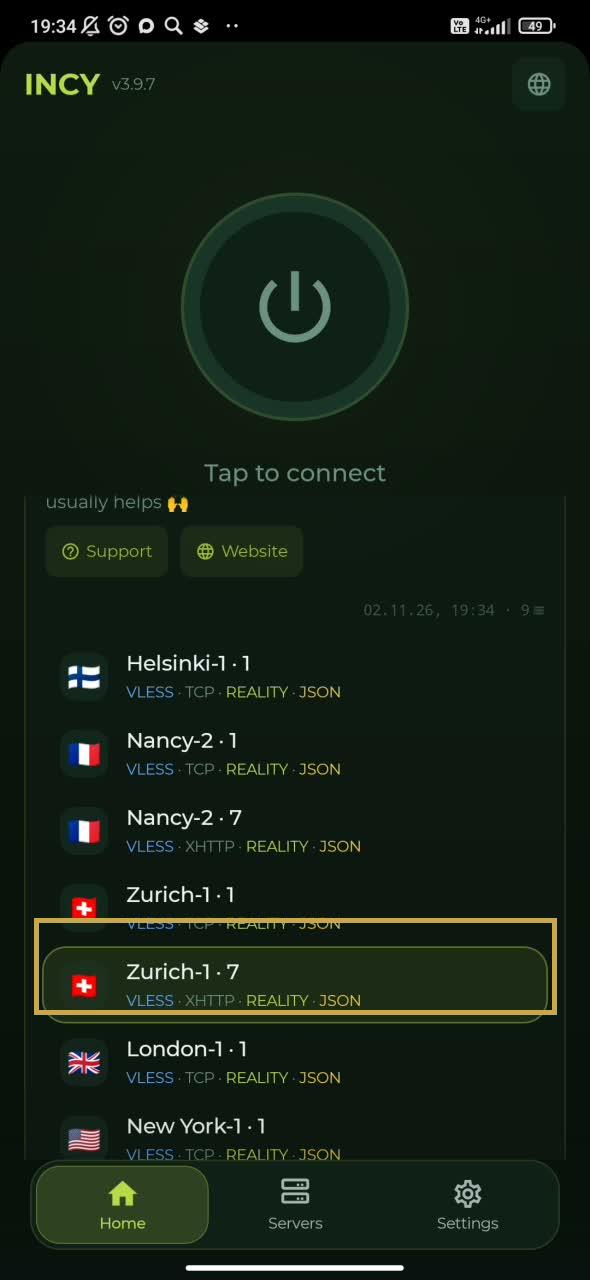
Choose a connection from the list and tap the large round button.
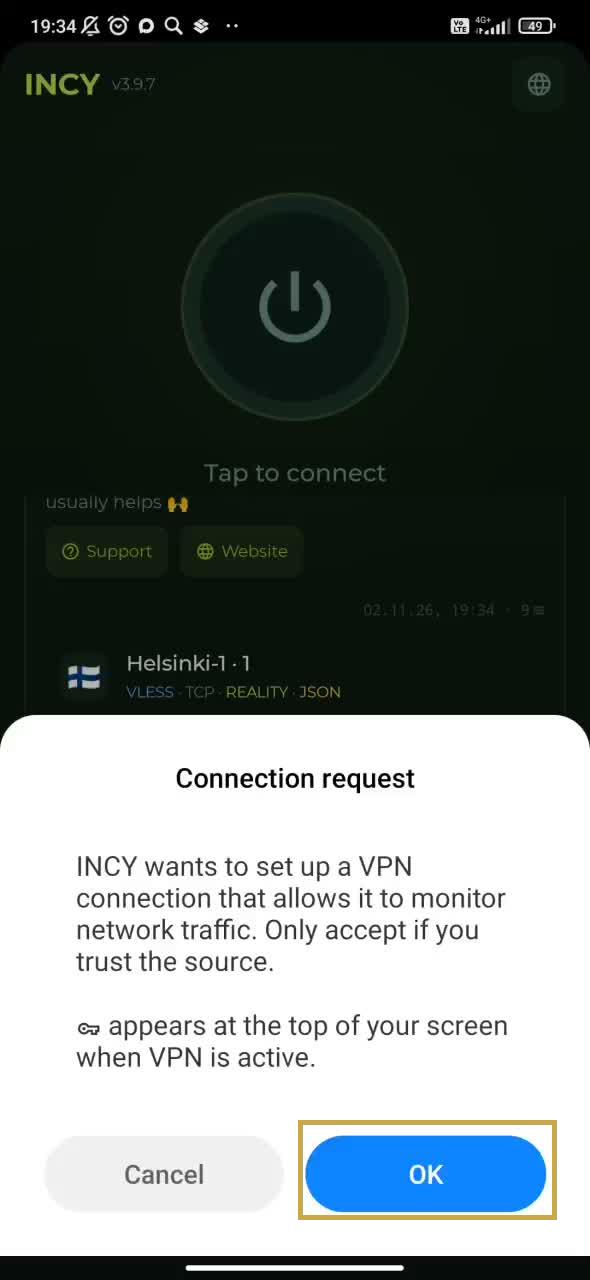
Allow the connection
If Android asks for permission to set up the connection, tap “OK”.
Check the connection
A timer at the top of the screen shows that the connection is on.