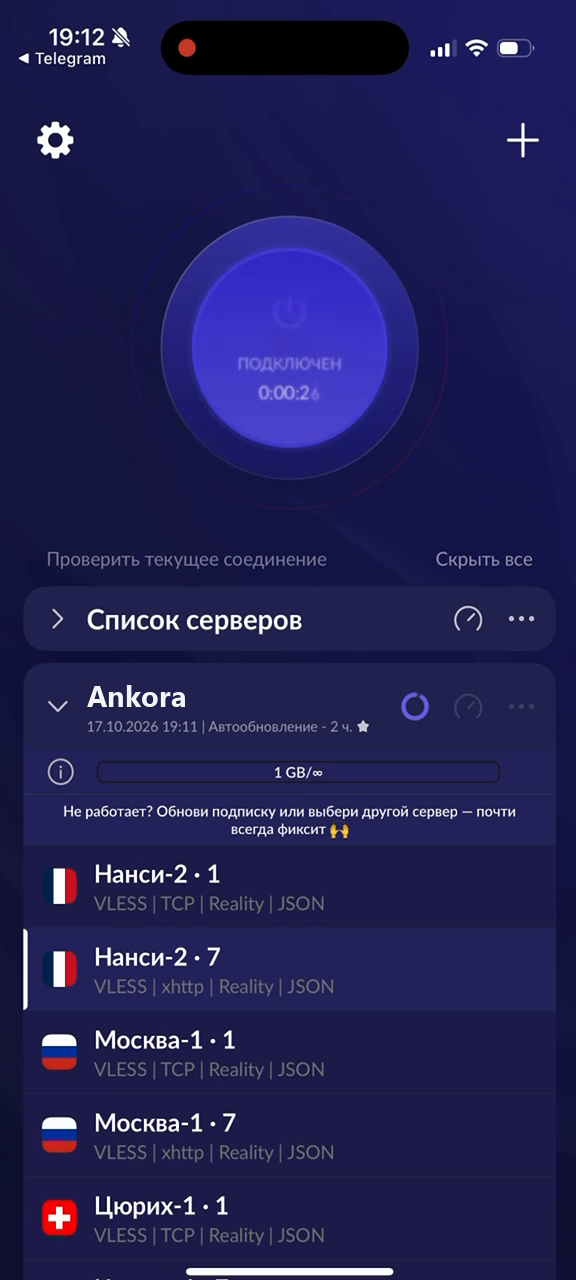
iPhone · Happ · detailed guide
Connect to Ankora with Happ
Install Happ first, then add your subscription.
Two ways to add your subscription
Install Happ
Open Happ in the App Store and install it.
Happ may be unavailable in your App StoreIf you can't open or find the app, change your Apple Account region first. Then return to this step.
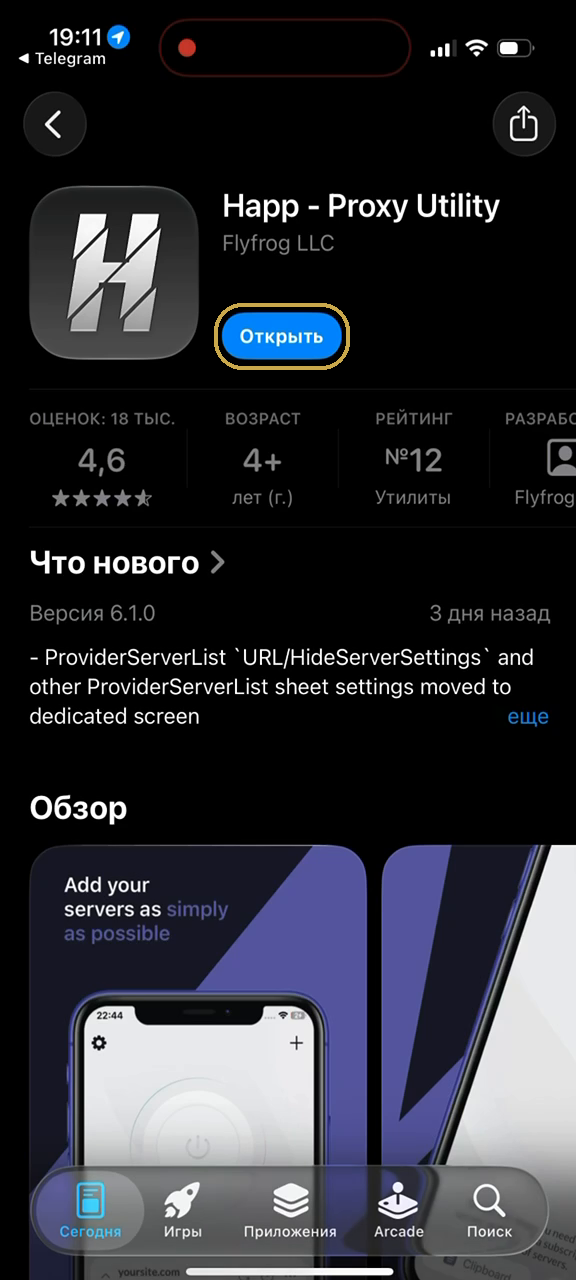
Open your subscription in Happ
Return to Ankora and tap “Open in Happ”.
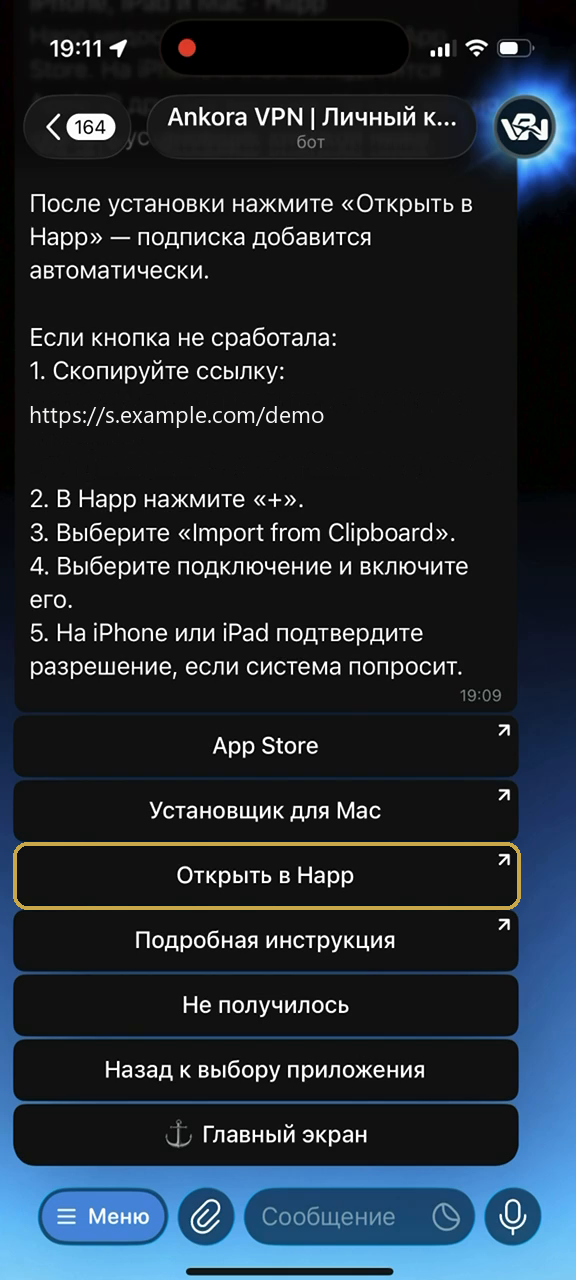
Allow the app to open
If iPhone shows a system prompt, tap “Open”.
Wait for the subscription to be added
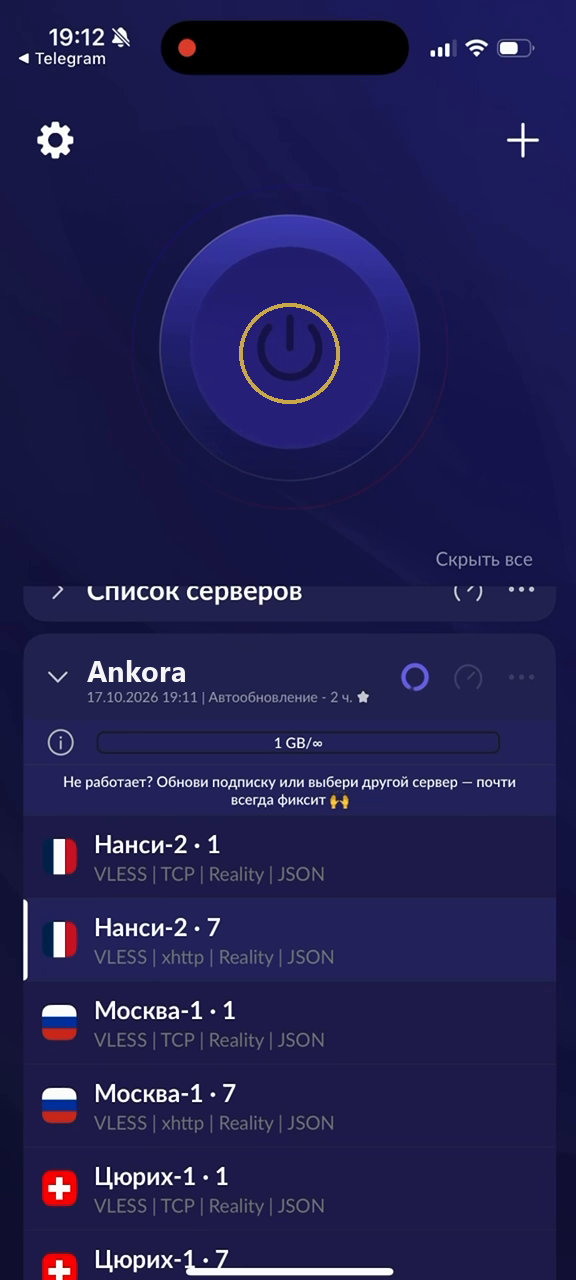
Happ will open and show your Ankora subscription with a list of connections.
Choose a connection
Tap any connection in the list.
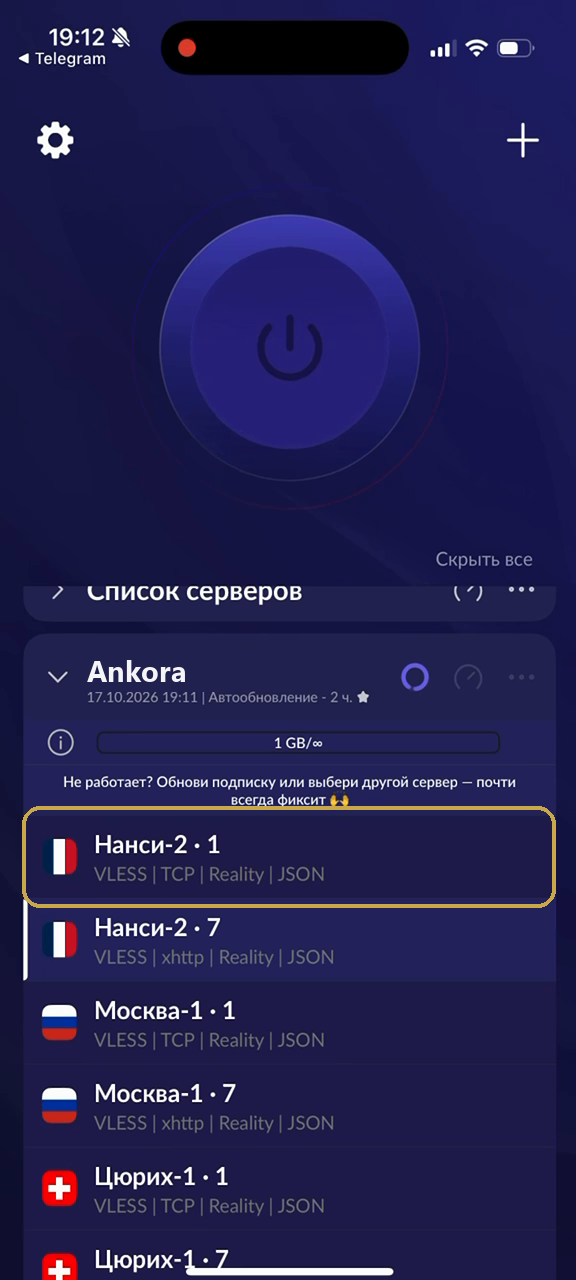
Turn on the connection
Tap the power button at the top of the screen.
Allow the connection
The first time you connect, iPhone may ask to add a VPN configuration. Tap “Allow” and confirm as your phone prompts.
Check the connection
The large button will show “CONNECTED” and a timer.